 GRC Owl
Evidence check
Compares the evidence on a control with its description, frequency and the audit period, and says what looks missing.
Drafting risks, checking evidence, reading vendor reports and answering auditors take hours. GRC Owl's AI does the first pass inside the screens your team already uses, and you review every result.
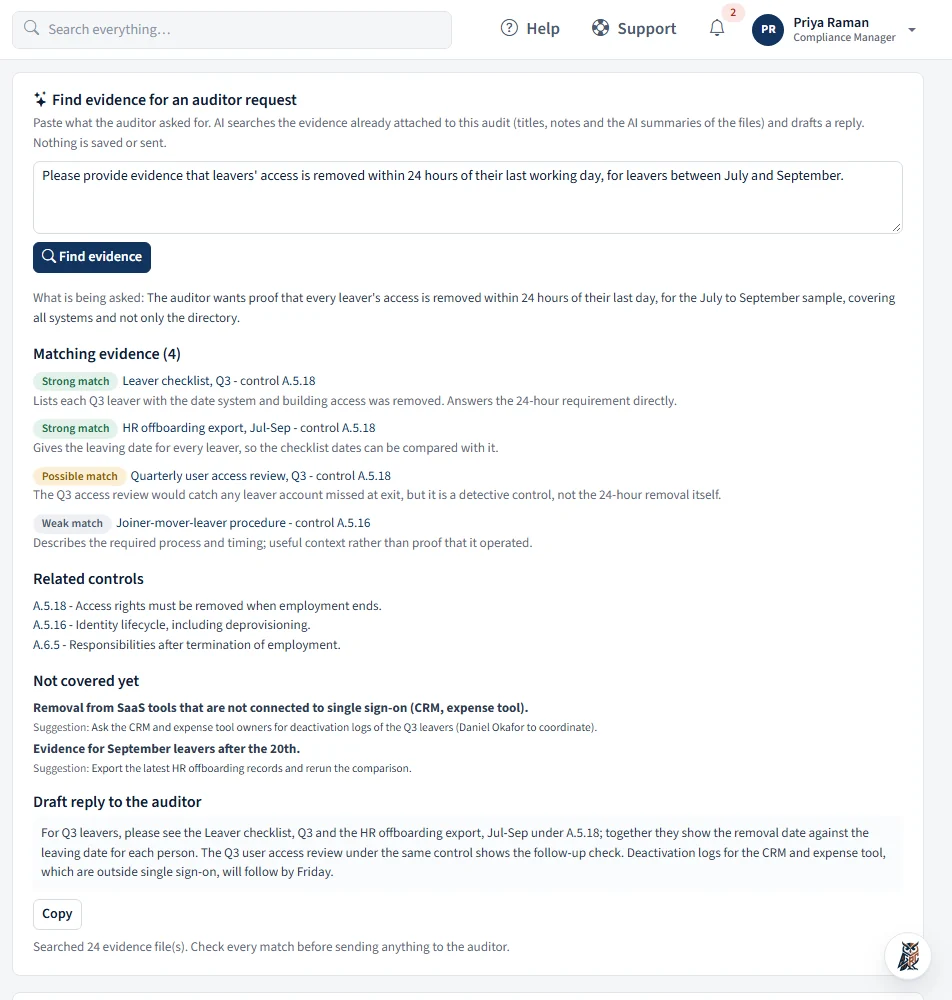
Paste a request from your external auditor. GRC Owl searches the evidence already attached to the audit, including what is inside each file, and shows what matches and what is missing.
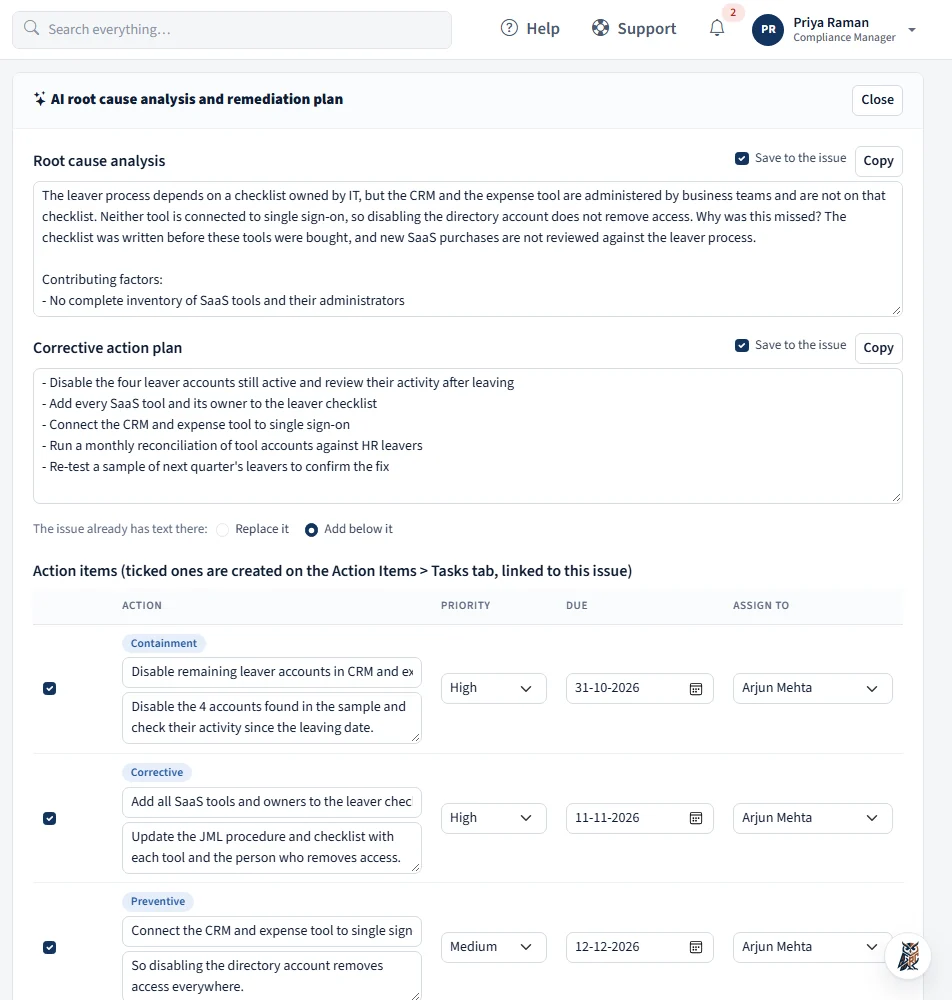
Open an issue and ask for a remediation proposal. The AI reads the description, comments, linked controls and risks, and attachment summaries, then proposes what to do.
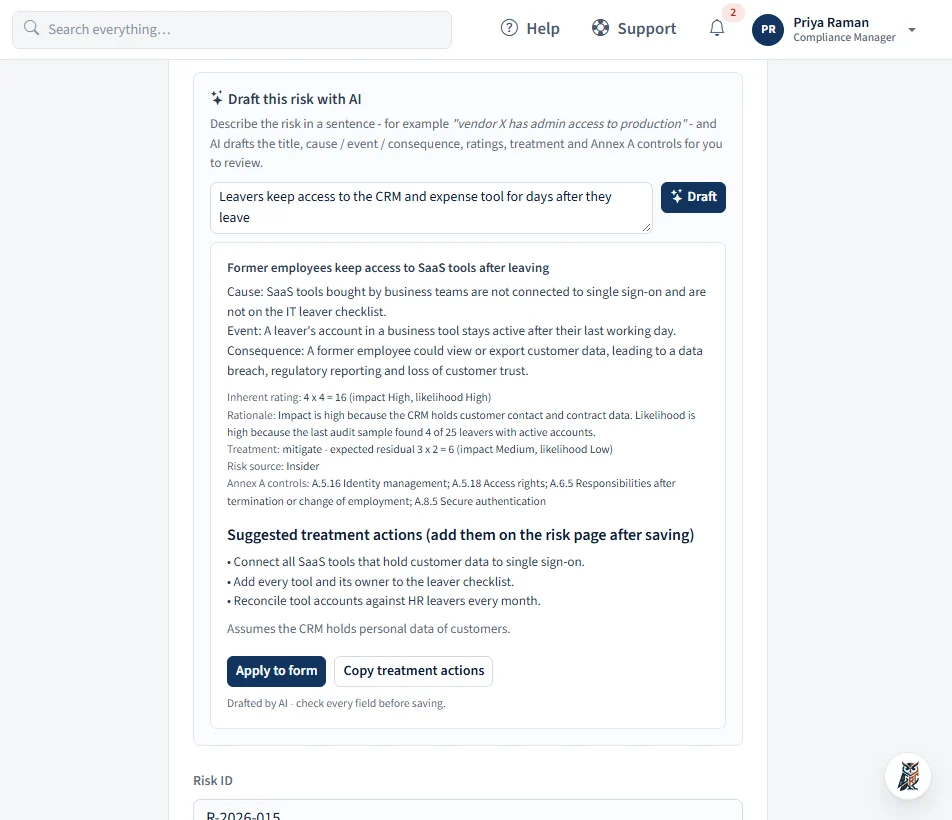
Describe the risk in plain words. The AI drafts the title, cause, event and consequence, inherent and residual ratings with a rationale, the treatment and the Annex A controls, ready to apply to the form.
Press Review with AI on a vendor's compliance document. You get the type, issuer, scope and period, the opinion, every exception with the management response, your complementary user-entity controls and the red flags to act on.
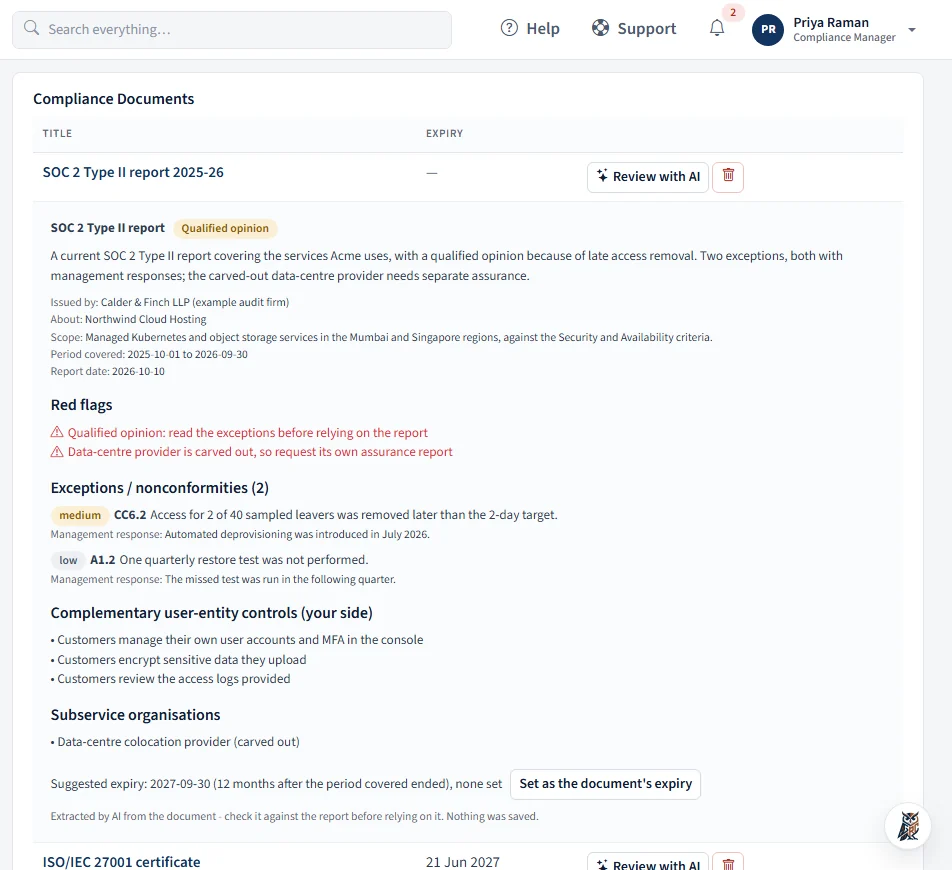
Each one sits on the page where you do the work. There is no separate AI tool to learn.
Compares the evidence on a control with its description, frequency and the audit period, and says what looks missing.
Drafts test steps, a sample size and the evidence to expect, from what you typed on the control. It fills the form only when you press Use.
Reviews each requirement of the frameworks you audit against the Unified Control Framework and proposes the common controls that fit, logging every change so you can review it.
Paste an auditor's request and it searches the evidence already on the audit, lists matches and gaps, and drafts a reply.
Reads your automated integration checks and suggests the controls each one proves, so you can tick and link them in one step.
Turn one sentence into a full risk entry: cause, event, consequence, ratings, treatment and Annex A controls, loaded into the unsaved form.
A second opinion on your ratings against the description, the mitigating controls and the register's other risks.
Reads the issue, comments, linked controls and risks and attachments, then proposes a root cause, a corrective plan and dated action items. Only what you tick is saved.
Reads a SOC report, ISO certificate or pen-test letter and pulls out scope, period, opinion, exceptions, user-entity controls and red flags.
10 to 20 question ideas for a questionnaire or template, de-duplicated against the ones you already have.
Summarises a vendor's answers and files into findings and a follow-up message you can copy. Nothing goes to the vendor automatically.
Compares a new version with the previous file and drafts the “version changes” note.
Prioritised improvements for a new document, ready for you to accept or ignore.
Checks a policy against a framework's requirements and shows what is covered and what is not.
Board-pack commentary written from the numbers your own dashboard shows.
Describe a change in plain words and it adds the statuses and transitions, under the same rules as the manual editor, and reports what it applied or skipped.
Each upload is read in the background, including text in images and scans, so search finds a file by what it contains, not just its name.
Describe the graph you want and Owl sets up the custom graph builder for you to preview, using only the modules you can open.
More natural answers about your own tasks, risks, issues, audits, documents and vendors, plus questions that fit the page you are on.
Compliance records are sensitive, so the AI is built to be switched off, limited and checked.
An administrator switches it on for the installation and for each instance, and holds the API key. Without it, nothing is ever sent and no AI buttons appear.
Results are previews, drafts in an unsaved form, or ticked lists. The one action that applies directly, the workflow builder, reports what it did and is logged.
Requests use only records the signed-in person may already open, and uploaded documents are treated as data, never as instructions.
Every call records who, when and which feature, never your prompts or answers, so you can see how it is used.
If one model is busy, GRC Owl tries the next. If none answer, Ask Owl falls back to its built-in answers and everything else works as normal.
When on, the text or file you are working on goes to Google Gemini to produce the result. See the security FAQ.
No. It is off until your administrator turns it on in the admin console, for the installation and for each instance, and it needs an API key that only the administrator holds. With the AI off, every button and panel on this page is hidden and GRC Owl works as it always did.
The text or file you are working on is sent to the AI provider, currently Google Gemini, to produce the result. GRC Owl sends only what the feature needs, such as one document, one issue with its comments, or the records Ask Owl has already looked up for you. Each call is logged with who, when and which feature, without the content.
No. Results are suggestions. Most are shown as a preview or placed in an unsaved form, and anything that is saved, such as the action items from an issue, is saved only for the items you tick. The exception is the workflow builder, which applies the change you describe, tells you exactly what it applied and skipped, and records it in the log.
Yes. It only works with records the signed-in person is already allowed to open, and the evidence finder searches only evidence that person may see. Documents and vendor files are treated as data to analyse, never as instructions.
GRC Owl tries backup models, and if none answer, Ask Owl falls back to its built-in answers. AI output can be wrong, so treat it as a first draft and check it, particularly anything you will send to an auditor or vendor.
We will walk through the features that matter to your team, and how your administrator controls them.